


Resetting your iPhone can be a lifesaver in a variety of situations, from improving performance to preparing your device for sale or troubleshooting persistent software issues. Over time, iPhones can slow down, apps may crash, or unexpected glitches can arise, and performing a reset often provides a fresh start, restoring your device to its optimal condition.
In this article, we’ll guide you through everything you need to know about an iPhone hard reset, including both standard and advanced methods. Whether you simply want to refresh your device or need to reset it under more challenging circumstances—like when it’s locked or you’ve forgotten your password—we’ll cover step-by-step instructions to ensure a safe and effective reset process. By the end, you’ll have all the tools and knowledge to manage your iPhone confidently, keep your data secure, and resolve any issues without unnecessary stress.
No matter your situation, following the right procedure ensures that your iPhone continues running smoothly and efficiently.
What is an iPhone Hard Reset?
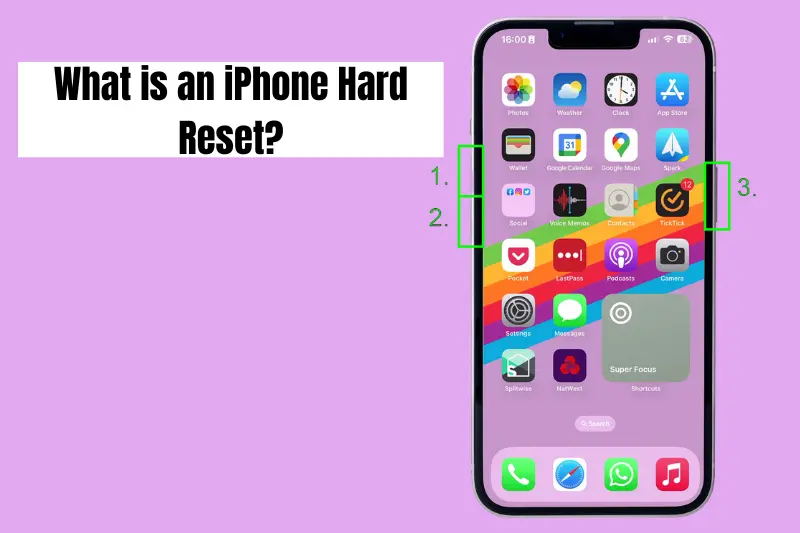
An iPhone hard reset is a method used to forcibly restart your device, often resolving minor software issues, unresponsive screens, or frozen apps. Unlike a standard restart, which simply powers your iPhone off and on, a hard reset interrupts the device’s power cycle, helping it recover from temporary glitches without affecting your personal data.
It’s important to note that a hard reset is different from a factory reset iPhone, which erases all data and restores the device to its original settings. While a hard reset is a quick troubleshooting step, a factory reset is a more comprehensive solution when you want to start fresh, sell your iPhone, or remove all personal information.
Performing an iPhone hard reset is often the first step before moving on to more advanced procedures, such as resetting your iPhone when locked or performing a factory reset without a password. Understanding this distinction ensures you choose the right method for your needs and avoid unnecessary data loss.
By mastering the hard reset, you can keep your iPhone running smoothly and reduce the chances of persistent software problems.
How to Factory Reset iPhone (Step-by-Step)
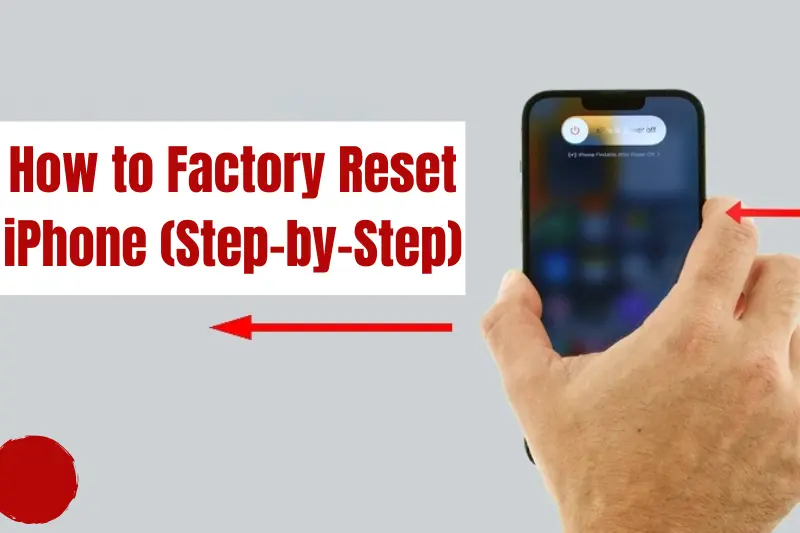
Performing a factory reset iPhone is a straightforward process that completely erases all data and restores the device to its original settings. This is especially useful when troubleshooting major software issues, preparing your iPhone for sale, or starting fresh. Here’s how to do it safely:
Step 1: Back Up Your Data
Before resetting, ensure all your important data—photos, contacts, apps—is backed up via iCloud or iTunes/Finder. A factory reset will erase everything on your device.
Step 2: Navigate to Reset Options
- Open Settings on your iPhone.
- Tap General → Transfer or Reset iPhone → Erase All Content and Settings.
Step 3: Confirm the Reset
- Enter your Apple ID password if prompted.
- Confirm that you want to erase the iPhone.
Step 4: Wait for the Process to Complete
- Your iPhone will restart automatically.
- Once complete, the device will be restored to its original factory settings.
By following these steps, you can factory reset iPhone safely and efficiently. This method works on all modern iPhone models and ensures your personal data is fully removed before transferring or troubleshooting your device.
Factory Reset iPhone Without Password
Sometimes, you may need to perform a factory reset iPhone but don’t have access to the device password. Whether you’ve forgotten it or bought a second-hand iPhone that’s locked, there are ways to reset your device safely. Here are the most common methods:
Method 1: Using iTunes or Finder
- Connect your iPhone to a computer with iTunes (or Finder on macOS Catalina and later).
- Put your iPhone into Recovery Mode:
- For iPhone 8 or later: Press and quickly release the Volume Up button → Volume Down → then hold the Side button until Recovery Mode appears.
- In iTunes/Finder, select Restore when prompted.
- Wait for the process to complete and set up your iPhone as new.
Method 2: Using iCloud (Find My iPhone)
- Go to iCloud.com and log in with the Apple ID linked to the iPhone.
- Select Find iPhone → choose your device → Erase iPhone.
- This will reset the iPhone remotely, removing all data and settings.
These methods allow you to factory reset iPhone without password safely and regain access to your device. Always ensure you have the necessary Apple ID credentials to complete the reset when using iCloud.
How to Factory Reset iPhone When Locked
If your iPhone is locked and you cannot access the device normally, performing a factory reset iPhone may seem challenging—but it’s entirely possible using Recovery Mode or specialized tools. Follow these steps carefully:
Method 1: Using Recovery Mode
Connect your iPhone to a computer with iTunes (or Finder on macOS Catalina and later).
Put your iPhone into Recovery Mode:
- iPhone 8 or later: Press and quickly release Volume Up → Volume Down → hold the Side button until Recovery Mode screen appears.
- iPhone 7 / 7 Plus: Hold Volume Down + Side button together until Recovery Mode appears.
- iPhone 6s and earlier: Hold Home + Side (or Top) button together until Recovery Mode appears.
- On iTunes/Finder, select Restore.
Wait for the device to reset completely and restart.
Method 2: Using Third-Party Tools (Optional)
Some reputable third-party tools can reset locked iPhones if Recovery Mode doesn’t work. Always choose trusted software to avoid data or security risks.
Performing a hard reset on an iPhone when it’s locked allows you to regain control without needing the passcode. Remember, this process will erase all data, so use it only if you’re prepared to restore your information afterward.
Things to Keep in Mind Before Resetting
Before performing a factory reset iPhone or an iPhone hard reset, there are important considerations to ensure a smooth and safe process:
Backup Your Data
- Always back up your iPhone using iCloud or iTunes/Finder.
- A factory reset will erase all personal data, apps, and settings, so having a backup ensures you can restore your important files later.
Sign Out of Apple ID
- If you’re planning to sell or give away your device, sign out of your Apple ID.
- This prevents Activation Lock from preventing the new user from setting up the iPhone.
Charge Your Device
- Make sure your iPhone has at least 50% battery or is connected to a power source before starting the reset.
Understand the Difference Between Hard Reset and Factory Reset
- A hard reset resolves minor glitches without deleting data.
- A factory reset erases all data and restores the device to its original state.
By keeping these points in mind, you can perform a reset safely and avoid potential data loss or complications. Proper preparation ensures your iPhone runs smoothly and securely after the reset.
Conclusion
Performing an iPhone hard reset or a factory reset iPhone can help resolve software issues, improve performance, and prepare your device for resale. Whether you’re resetting your iPhone normally, without a password, or even when it’s locked, following the correct steps ensures a safe and efficient process. Always back up your data, sign out of your Apple ID when necessary, and understand the difference between a hard reset and a full factory reset.
By mastering these methods, you can maintain your iPhone’s performance, troubleshoot problems confidently, and keep your data secure.
FAQS
Q1: How do I hard reset my iPhone?
A: Quickly press and release the Volume Up button, then the Volume Down button, and hold the Side button until the Apple logo appears. This works on iPhone 8 and later models.
Q2: Can I factory reset my iPhone without a password?
A: Yes, using iTunes/Finder Recovery Mode or iCloud’s “Erase iPhone” feature, you can reset an iPhone without the password.
Q3: What happens when I factory reset my iPhone?
A: All personal data, apps, and settings are erased, and the iPhone is restored to its original factory settings.
Q4: How can I reset an iPhone that is locked?
A: Use Recovery Mode through iTunes/Finder or trusted third-party tools. This will erase the device and allow you to set it up as new.
